所悟 · 2026-09-26
企业打印服务解决方案:CUPS + Avahi
在企业信息化的世界里,有些系统光鲜亮丽,比如 ERP、BI、AI 平台;有些系统则默默无闻,却每天都在支撑着办公秩序。打印系统就是典型的一类。
企业打印服务解决方案:CUPS + Avahi
在企业信息化的世界里,有些系统光鲜亮丽,比如 ERP、BI、AI 平台;有些系统则默默无闻,却每天都在支撑着办公秩序。打印系统就是典型的一类。
几乎每个企业 IT 都经历过这样的场景:员工电脑换了、驱动丢了、打印机 IP 不知道、某台打印机突然“离线”。看起来是小问题,但当企业规模扩大到几十、几百台打印机时,这些问题会不断重复出现,消耗大量 IT 支持时间。
于是很多企业在多年折腾之后,都会意识到一件事:
打印系统其实也需要一个像 ERP 一样的“服务器”。
这就是 打印服务器(Print Server) 的概念。
打印系统为什么会混乱
在很多公司,打印机最初都是这样接入的:
员工电脑 → 直接连接打印机IP → 打印
表面看很简单,但问题很快就会出现。
每个员工电脑都要安装驱动,驱动版本不同会导致各种兼容问题。 员工不知道打印机 IP,每次都要 IT 帮忙添加。 打印机一旦更换 IP,几十台电脑都要重新配置。
当企业规模稍微扩大一点,这种模式就会变成 IT 运维里的“隐形黑洞”。
打印服务器的核心思想
打印服务器的思路其实非常简单:
所有打印机统一接入服务器,由服务器统一对外提供打印服务。
结构变成:
graph LR
  A[打印机] --> B[打印服务器]
  B[打印服务器] --> C[用户电脑]
这样带来的变化非常明显。
员工不再直接连接打印机,而是连接服务器上的“打印队列”。 驱动只需要在服务器安装一次。 新增打印机只需要服务器配置一次。
IT 从“装驱动”变成“管理打印资源”。
一个简单但强大的开源方案
本文介绍一个开源解决方案:
CUPS(Common Unix Printing System)
CUPS 是 Linux 和 macOS 的核心打印系统,也是 OpenPrinting 项目的核心组件。很多企业级打印系统的底层,其实都是 CUPS。
配合另一个组件:
Avahi(mDNS / Bonjour 服务发现)
就可以实现自动发现局域网打印机。
整体结构是这样的:
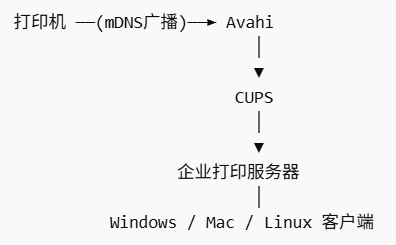
- 打印机在局域网广播(Bonjour / mDNS)
- Avahi监听到广播
- CUPS自动发现打印机
- 用户从服务器添加打印机
这就是 零配置打印(Zeroconf Printing)。
打印机在局域网中广播自己的信息,服务器自动发现并接入,然后统一提供打印服务。
整个系统非常稳定,而且几乎不需要维护。
网络规划
如果你是刚开始规划企业网络,建议通过VLAN方式,将打印网络单独划分,并设置其他网段能访问到打印服务器所在网段,方便统一管理
结构示意:
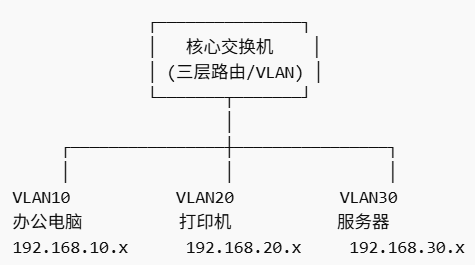
打印服务器放置:
打印服务器
192.168.30.10
CUPS 会管理所有打印机:
192.168.20.10
192.168.20.11
192.168.20.12
员工电脑只需要连接服务器:
http://192.168.30.10:631/printers/finance_printer
而不是直接连打印机。
这种架构的好处
第一是 安全性。
办公电脑不能直接访问打印机管理界面。
第二是 管理统一。
所有打印机都通过服务器管理。
第三是 网络更清晰。
系统部署
准备服务器
推荐配置:
系统:Ubuntu Server 22.04
CPU:2核
内存:2GB
IP:固定IP
安装系统后先更新:
sudo apt update
sudo apt upgrade -y
安装 CUPS(打印服务器)
安装:
sudo apt install cups -y
启动服务:
sudo systemctl enable cups
sudo systemctl start cups
查看状态:
systemctl status cups
如果正常,会看到:
Active: active (running)

配置 CUPS
默认 CUPS 只允许本机访问。 编辑配置:
sudo nano /etc/cups/cupsd.conf
修改几个关键配置:
1、修改监听地址
Listen localhost:631
改为:
Port 631
2、允许局域网访问
<Location />
  Order allow,deny
</Location>
改为:
<Location />
  Order allow,deny
  Allow @LOCAL
</Location>

<Location /admin>
  Order allow,deny
</Location>
改为:
<Location /admin>
  Order allow,deny
  Allow @LOCAL
</Location>
3、开启打印机共享
Browsing No
改为:
Browsing Yes

并确认:
BrowseLocalProtocols dnssd
重启 CUPS:
sudo systemctl restart cups
安装 Avahi(自动发现打印机)
安装:
sudo apt install avahi-daemon avahi-utils -y
启动:
sudo systemctl enable avahi-daemon
sudo systemctl start avahi-daemon
检查:
systemctl status avahi-daemon

安装驱动
很多打印机支持 IPP Everywhere,不需要驱动。
如果需要驱动:
安装通用驱动包:
sudo apt install printer-driver-all
HP打印机:
sudo apt install hplip
查看自动发现的打印机
运行:
avahi-browse -rt _ipp._tcp
如果打印机支持 IPP,会看到类似:
HP LaserJet M404 @ 192.168.1.23
Canon iR-ADV C3520 @ 192.168.1.25
这说明:
服务器已经发现打印机。
需要注意的是:CUPS能自动发现同网段打印机,跨网段情况下面会说明
CUPS 管理界面
浏览器打开(认证使用服务器账号密码即可):
http://服务器IP:631
例如:
http://192.168.1.10:631
进入:
Administration → Add Printer
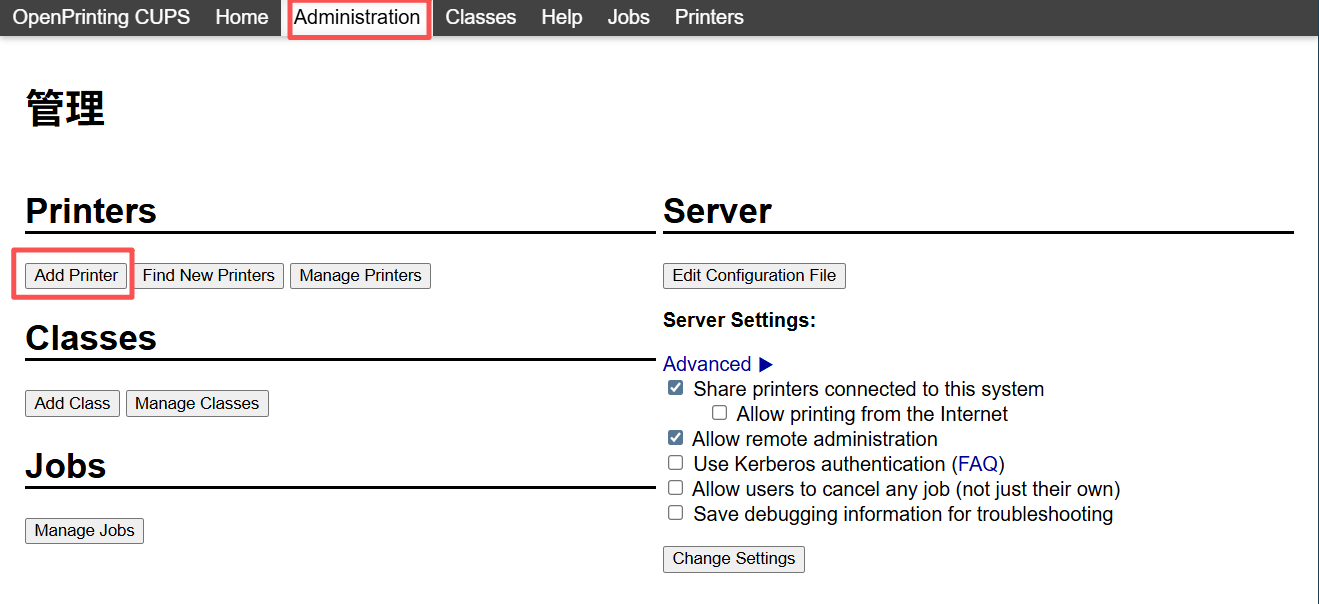
通常会看到:
Discovered Network Printers
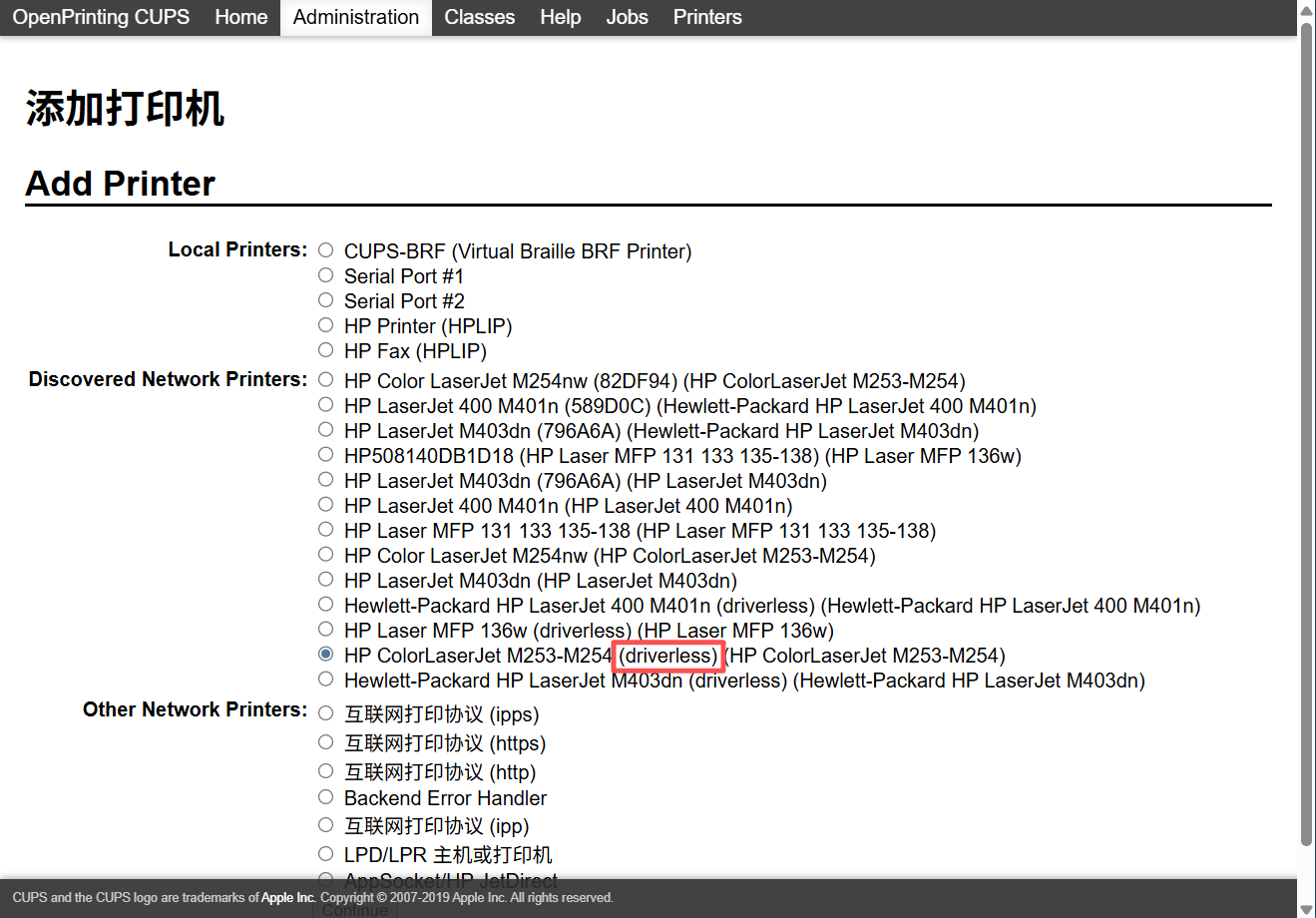
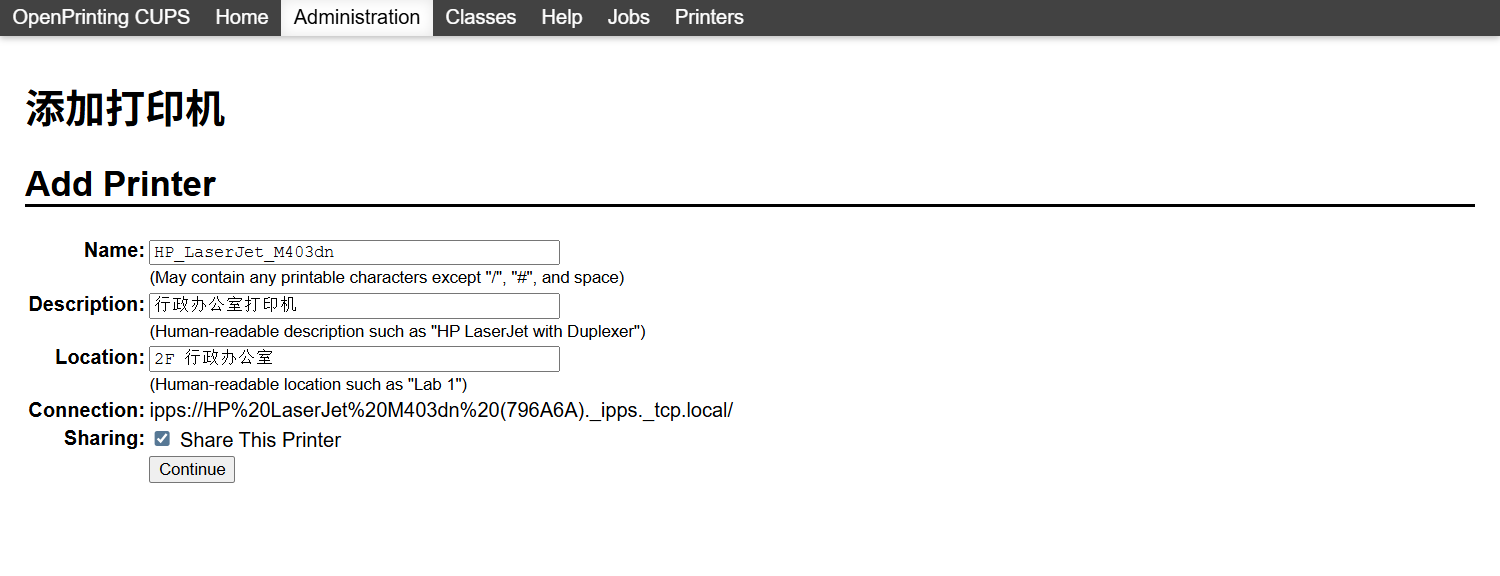
注意事项:
- 优先选择
driverless免驱选项 - 添加后注意勾选
Share This Printer才能将打印机进行发布 - 添加打印机时,相关信息填写完整(
Name、Description、Location),方便列表中查看
跨网段添加: 进入:
Administration → Add Printer
选择:
AppSocket / HP JetDirect
这是最通用的打印协议。
然后输入地址:
socket://192.168.20.35:9100
这里的 9100 是打印机最常见端口。
如果打印机支持 IPP,也可以写:
ipp://192.168.20.35/ipp/print
注意前面网络架构提到的,跨VLAN需设置为网络必须允许访问
客户端添加
打印服务器添加好后,可直接在客户端访问打印机列表
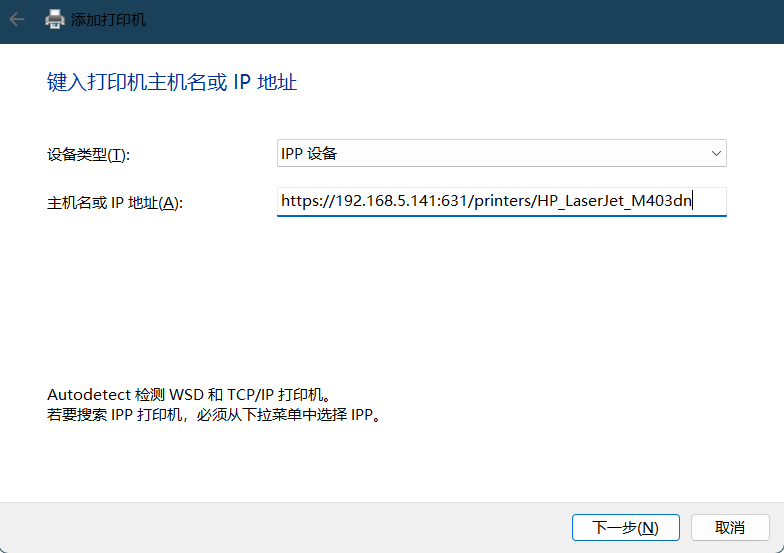
https://服务器IP:631/printers
也可在控制面板-打印机添加中查询
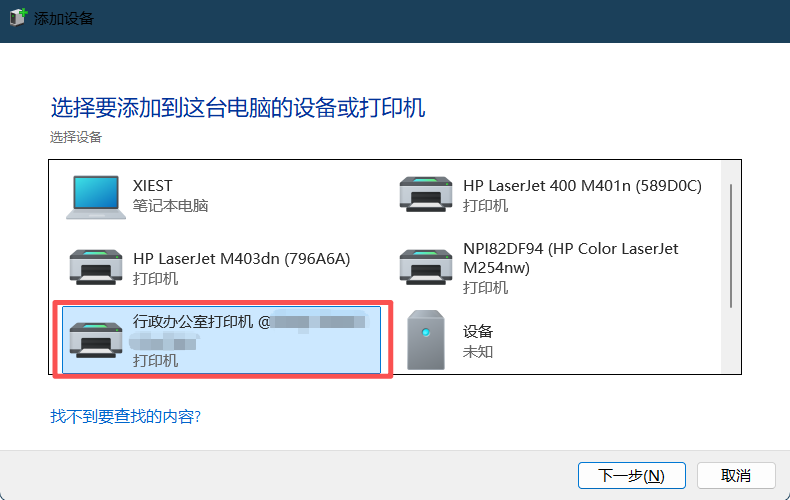
如果未列出,可直接使用浏览器地址手动添加
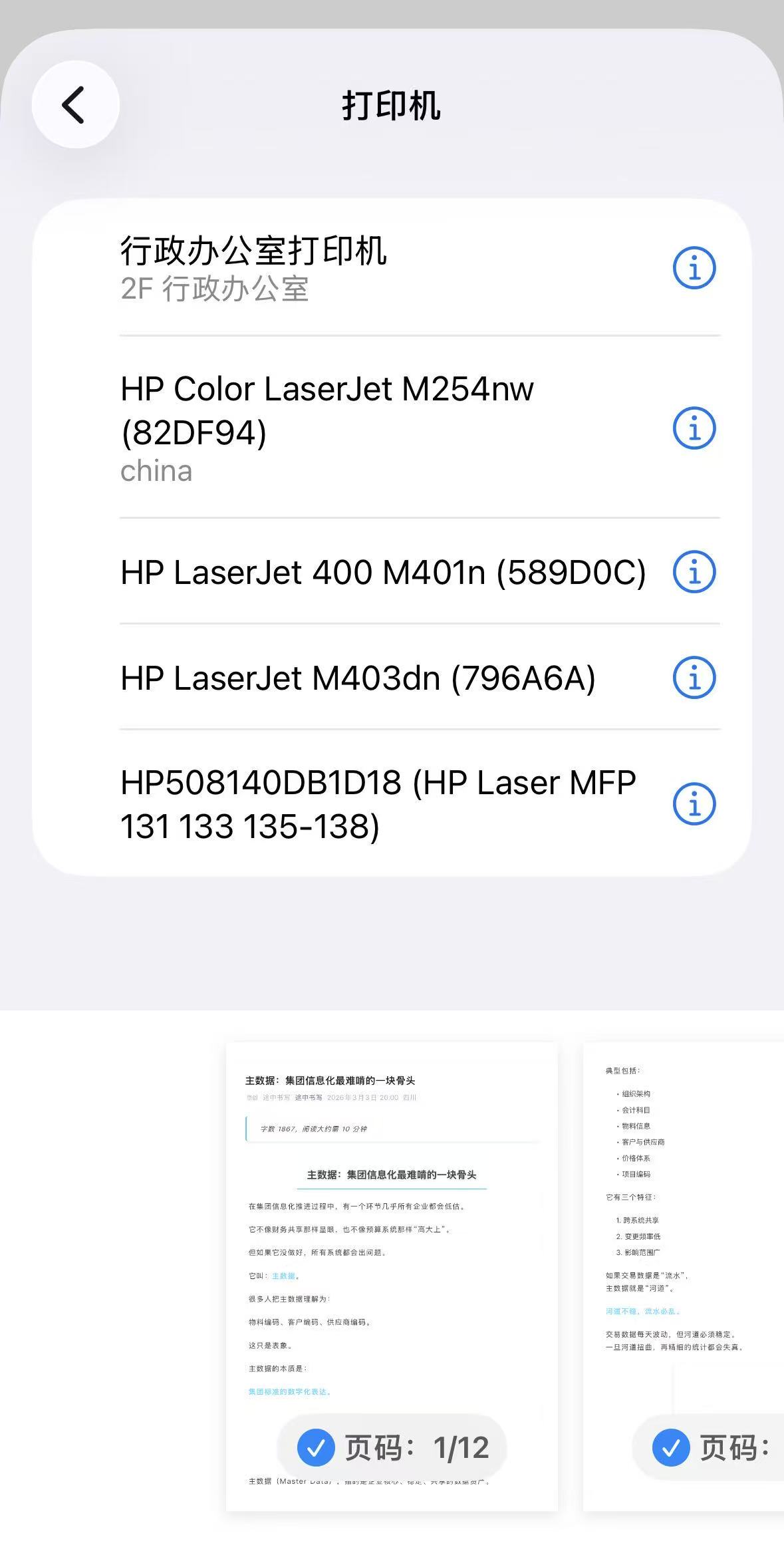
移动端:
更进一步
在部署完服务端后,我们不再需要去找每台打印机的IP是什么,也不需要一台一台安装驱动,下面我们更进一步,无人值守安装
安装门户依赖(在 CUPS 服务器上)
Ubuntu/Debian 示例:
sudo apt update
sudo apt install -y python3 python3-venv python3-pip nginx
sudo apt install -y libcups2-dev
sudo pip3 install pycups flask gunicorn
pycups 用来直接读取 CUPS 的打印队列列表(稳定、简单、无需解析网页)。
创建门户程序
sudo mkdir -p /opt/printer-portal
sudo chown -R $USER:$USER /opt/printer-portal
cd /opt/printer-portal
新建 app.py:
from flask import Flask, Response, render_template_string, request
import cups

app = Flask(__name__)

HTML = """
<!doctype html>
<html lang="zh">
<head>
<meta charset="utf-8">
<title>公司打印机自助安装</title>
<meta name="viewport" content="width=device-width, initial-scale=1">
<style>
body{font-family:system-ui;margin:30px;max-width:1100px;}
h1{font-size:24px;}
.group{margin-top:25px}
.card{border:1px solid #ddd;border-radius:10px;padding:12px;margin:10px 0}
.btn{display:inline-block;border:1px solid #444;padding:6px 10px;border-radius:6px;margin-right:6px;text-decoration:none;color:#000;font-size:13px}
.search{margin-top:10px;margin-bottom:15px}
.note{color:#666;font-size:13px;margin:6px 0 14px 0}
</style>

<script>
function filterPrinters(){
  let q=document.getElementById("search").value.toLowerCase()
  let cards=document.getElementsByClassName("card")

  for(let c of cards){
    if(c.innerText.toLowerCase().indexOf(q)>-1)
      c.style.display=""
    else
      c.style.display="none"
  }
}
</script>

</head>

<body>

<h1>公司打印机自助安装</h1>
<div class="note">说明:Windows 建议优先使用“Windows一键安装(推荐)”。PowerShell 脚本可能会被执行策略限制。</div>

<div class="search">
  <input id="search" placeholder="搜索打印机..." onkeyup="filterPrinters()" style="padding:6px;width:260px">
</div>

{% for group, items in printers.items() %}

<div class="group">
  <h2>{{group}}</h2>

  {% for p in items %}
  <div class="card">
    <b>{{p.info}}</b><br>
    队列:{{p.queue}}<br>

    <div style="margin-top:8px">
      <a class="btn" href="/install/windows/{{p.queue}}.cmd">Windows一键安装(推荐)</a>
      <a class="btn" href="/install/windows/{{p.queue}}.bat">Windows一键安装(BAT)</a>
      <a class="btn" href="/install/windows/{{p.queue}}.ps1">PowerShell安装(备用)</a>
      <a class="btn" href="/howto/{{p.queue}}">Mac / Linux</a>
    </div>
  </div>
  {% endfor %}
</div>

{% endfor %}

</body>
</html>
"""

HOWTO = """
<html>
<body style="font-family:system-ui;margin:30px;max-width:1000px">

<h2>{{name}}</h2>

<p>IPP 地址:</p>
<pre>ipp://{{server}}/printers/{{queue}}</pre>

<h3>macOS</h3>
<p>系统设置 → 打印机与扫描仪 → 添加打印机 → IP → 填写上面 IPP 地址</p>

<h3>Linux</h3>
<pre>
sudo lpadmin -p {{queue}} -E -v ipp://{{server}}/printers/{{queue}} -m everywhere
</pre>

<p><a href="/">返回</a></p>

</body>
</html>
"""

def list_printers():
    conn = cups.Connection()
    printers = conn.getPrinters()

    groups = {}

    for q, attr in printers.items():
        location = attr.get("printer-location", "未分类")
        info = attr.get("printer-info", q)

        if location not in groups:
            groups[location] = []

        groups[location].append({
            "queue": q,
            "info": info
        })

    # 让分组和组内打印机都有稳定排序
    for k in groups:
        groups[k] = sorted(groups[k], key=lambda x: (x["info"], x["queue"]))
    groups = dict(sorted(groups.items(), key=lambda x: x[0]))

    return groups

@app.route("/")
def index():
    return render_template_string(HTML, printers=list_printers())

@app.route("/howto/<queue>")
def howto(queue):
    server = request.host.split(":")[0]
    return render_template_string(
        HOWTO,
        queue=queue,
        server=server,
        name=queue
    )

def _text_response(content: str, filename: str):
    # 避免浏览器/系统对编码做奇怪处理:统一 text/plain
    return Response(
        content,
        mimetype="text/plain",
        headers={
            "Content-Disposition": f'attachment; filename="{filename}"',
            "Cache-Control": "no-store",
        },
    )

@app.route("/install/windows/<path:fname>")
def win_install(fname):
    server = request.host.split(":")[0]

    # =========================
    # PowerShell (备用):
    # - 纯英文输出避免乱码
    # - 仍可能被执行策略拦截,所以门户上把 .cmd 作为“推荐”
    # =========================
    if fname.endswith(".ps1"):
        queue = fname[:-4]
        content = f"""$server = "{server}"
$queue  = "{queue}"
$port   = "IPP_$queue"

# Create port (ignore error if exists)
& cscript.exe //nologo "$env:windir\\System32\\Printing_Admin_Scripts\\zh-CN\\prnport.vbs" -a -r $port -h $server -o raw -n 9100 | Out-Null

# Install printer
& "$env:windir\\System32\\rundll32.exe" "printui.dll,PrintUIEntry" /if /b "$queue" /r "$port" /m "Microsoft IPP Class Driver"

"Done."
"""
        return _text_response(content, f"{queue}.ps1")

    # =========================
    # BAT(兼容修复版):
    # - 强制 CRLF
    # - 纯 ASCII(无中文)
    # - 第一行必须是 @echo off 且行首不出现任何 BOM/空白
    # =========================
    if fname.endswith(".bat"):
        queue = fname[:-4]
        # 用拼接的方式强制 CRLF,避免 cmd 在某些环境对 LF 解析异常
        content = (
            f"@echo off\r\n"
            f"setlocal\r\n"
            f"set server={server}\r\n"
            f"set queue={queue}\r\n"
            f"set port=IPP_%queue%\r\n"
            f"\r\n"
            f"cscript //nologo %windir%\\System32\\Printing_Admin_Scripts\\zh-CN\\prnport.vbs -a -r %port% -h %server% -o raw -n 9100\r\n"
            f"\r\n"
            f"rundll32 %windir%\\System32\\printui.dll,PrintUIEntry /if /b \"%queue%\" /r \"%port%\" /m \"Microsoft IPP Class Driver\"\r\n"
            f"\r\n"
            f"echo Done.\r\n"
            f"pause\r\n"
        )
        return _text_response(content, f"{queue}.bat")

    # =========================
    # CMD(推荐):
    # - 双击可执行
    # - 通过 powershell -ExecutionPolicy Bypass 运行安装逻辑
    # - 基本不受“PS1右键/策略/MOTW”影响
    # =========================
    if fname.endswith(".cmd"):
        queue = fname[:-4]
        content = (
            "@echo off\r\n"
            "setlocal\r\n"
            "cd /d %~dp0\r\n"
            "\r\n"
            ":: Run installation via PowerShell with ExecutionPolicy Bypass\r\n"
            f"powershell -NoProfile -ExecutionPolicy Bypass -Command "
            f"\"$s='{server}'; $q='{queue}'; $port='IPP_'+$q; "
            f"& cscript.exe //nologo $env:windir\\System32\\Printing_Admin_Scripts\\zh-CN\\prnport.vbs -a -r $port -h $s -o raw -n 9100 | Out-Null; "
            f"& $env:windir\\System32\\rundll32.exe 'printui.dll,PrintUIEntry' /if /b $q /r $port /m 'Microsoft IPP Class Driver'\"\r\n"
            "\r\n"
            "echo Done.\r\n"
            "pause\r\n"
        )
        return _text_response(content, f"{queue}.cmd")

    return "error", 404

if __name__ == "__main__":
    app.run(host="0.0.0.0", port=8080)
用 systemd 把门户做成服务(长期运行)
新建 /etc/systemd/system/printer-portal.service:
[Unit]
Description=Printer Portal (Flask)
After=network.target

[Service]
WorkingDirectory=/opt/printer-portal
ExecStart=/usr/bin/python3 /opt/printer-portal/app.py
Restart=always
User=root

[Install]
WantedBy=multi-user.target
启动并开机自启:
sudo systemctl daemon-reload
sudo systemctl enable --now printer-portal
sudo systemctl status printer-portal
Nginx 反代成标准 80 端口
新建 Nginx 配置 /etc/nginx/sites-available/printer-portal:
server {
    listen 80;
    server_name printer.company.local;

    location / {
        proxy_pass http://127.0.0.1:8080;
        proxy_set_header Host $host;
        proxy_set_header X-Forwarded-For $remote_addr;
    }
}
启用:
sudo ln -s /etc/nginx/sites-available/printer-portal /etc/nginx/sites-enabled/printer-portal
sudo nginx -t
sudo systemctl restart nginx
然后在 DNS(或内网 hosts)里把:
printer.company.local -> CUPS服务器IP
访问
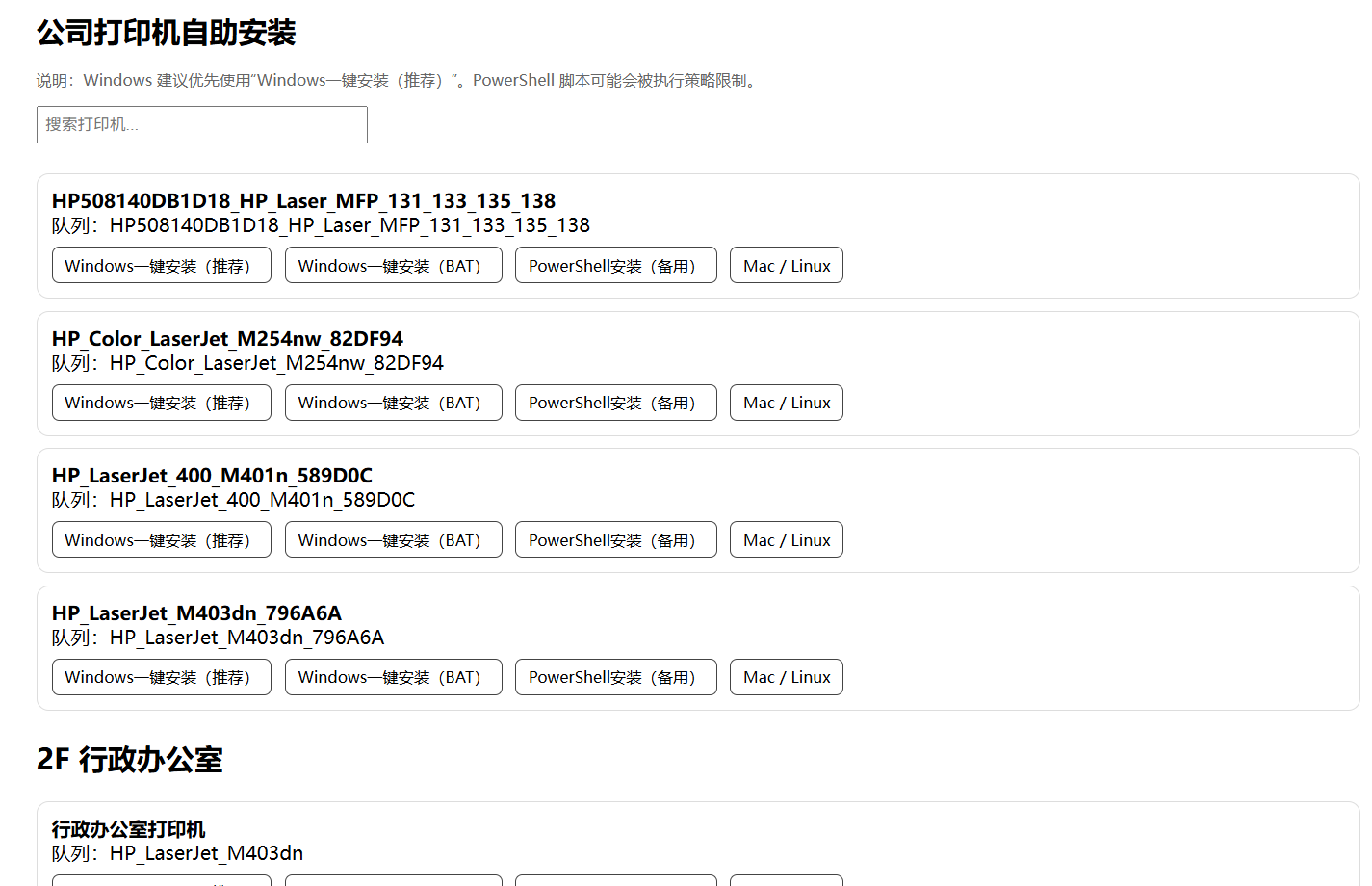
实现多客户端一键安装
列表会根据
Location分类,可自行在代码中调整
写在最后
在企业内部,很多问题其实并不复杂。
真正复杂的,是长期没有人愿意去解决它们。
打印机就是一个典型例子。
每个人电脑上装一遍驱动、换电脑再装一遍、换网段又要重新配置,IT 部门不断重复这些低价值工作,而员工也在不断消耗时间。
这些事情看起来很小,但当公司规模变大时,就会变成一种隐性的效率损耗。
而像 CUPS 这样的开源工具,其实早就提供了成熟的解决方案:
把复杂度放在服务器上,让用户端尽可能简单。
这也是企业信息化里一个很重要的原则:
复杂留在系统,简单留给用户。
当这些“看似微小”的问题逐渐被解决时,信息化的价值才会慢慢显现出来。
很多时候,企业的信息化并不是来自某一个宏大的系统,而是来自无数个这样的细节。